
A fully optimized Google Business Profile is one of the few things a local business fully controls in the Local Pack, Google Maps, and AI-powered search results. Local Citation Services helps new and multi-location businesses build the consistent, complete local presence that local search depends on. This guide covers the setup work end to end, and what to re-check when something about the business changes.
Table of Contents
What You Will Need Before You Start
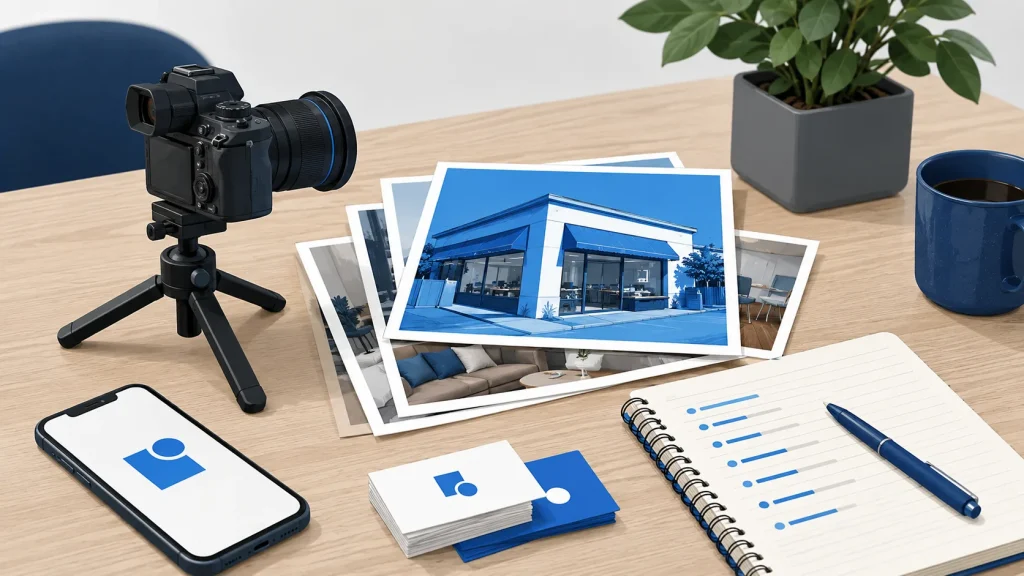
Before you touch a single field in the dashboard, gather the assets and access below. A first-time full optimization takes roughly 2-4 hours if you have everything ready. Skill level is beginner to intermediate; anyone comfortable with a web form and basic image editing can complete it.
- A verified Google account with ownership or manager access to the Business Profile.
- Accurate NAP data (Name, Address, Phone) that matches exactly what appears on your website and every external directory.
- High-resolution photos: cover, logo, interior, exterior, team, and product or service shots.
- A prepared 750-character business description with primary and secondary keywords identified in advance.
- A shortlist of primary and secondary categories, mapped against the actual services you sell.
The single most common blocker is inconsistent NAP data. Fix that before you edit the profile by running a citation cleanup pass so that every third-party mention of your business already matches the address and phone number you plan to publish.
Before You Start: What Can Go Wrong
Editing a live, ranking profile is not risk-free. Google re-indexes changes to core fields, and visibility can dip for several days while that happens. Plan edits around your slow trading window, not before a weekend rush.
Watch for these failure modes:
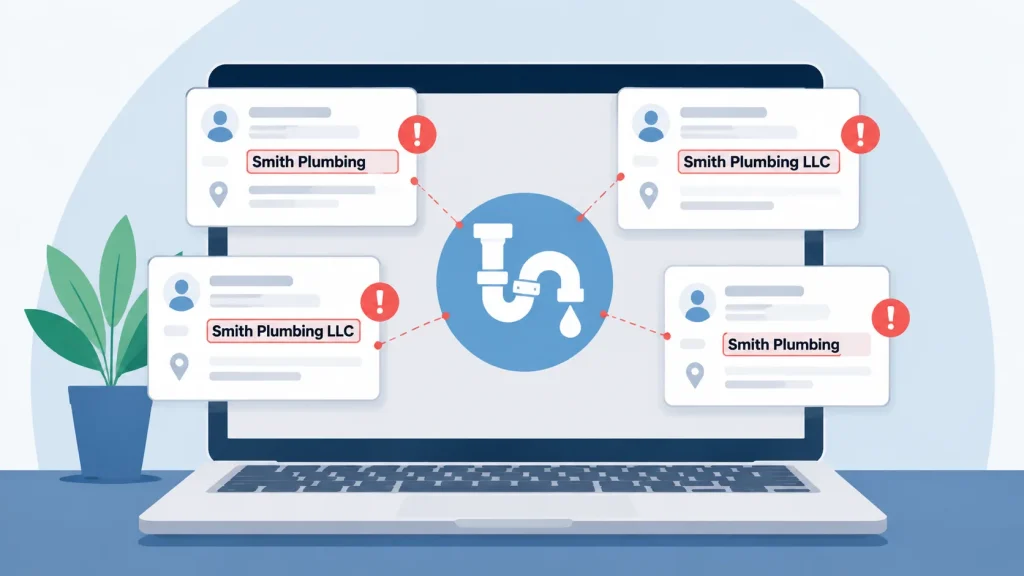
- Name mismatch across citations. If your GBP name reads “Smith Plumbing” but forty directories still say “Smith Plumbing LLC,” the listing can be rejected or suspended. Reconcile your local citations first.
- Duplicate listings. Two profiles for the same address, each collecting its own reviews. Merge or remove duplicates before you optimize the primary listing.
- Category changes without research. Primary category is the field that decides which searches the profile is eligible for at all. Do not swap it on a hunch.
- Bulk edits at once. Change one core field, wait for it to settle, then move to the next.
Takeaway: Do not open the dashboard until your NAP, photos, description and category list are locked. Fix duplicates and citation mismatches first, and stage edits over days rather than minutes. Our local SEO checklist walks through the pre-flight audit in detail.
Step-by-Step Google Business Profile Optimization
The six steps below are ordered deliberately. Verification unlocks the profile; category and description drive relevance; photos and products drive engagement. Work top to bottom. For teams that would rather have this done for them, our Google Business Profile boost service handles the full sequence.
Step 1: Verify Your Business
Sign in at business.google.com and select your listing. Choose the verification method Google offers you: postcard, phone, email, video, or instant if you have a linked Search Console property. Complete the process, then wait for the green “Verified” badge. Google requires verification before a profile is published, so nothing else in this guide applies until it is done. If you run several locations, group them under one manager account before verifying, which is where an agencies workflow saves time.
Step 2: Complete Every Core Profile Field
Open the profile editor and fill each field: legal business name, full street address, service area (if applicable), primary phone, website, hours, special hours, and attributes such as wheelchair access, Wi-Fi, or parking. Empty fields are information a searcher does not get. Verify each entry against your website; even a suite number mismatch counts as a NAP inconsistency. Businesses submitting local citations across directories should mirror the exact formatting used on GBP.
Step 3: Choose the Right Categories and Attributes
Set the primary category to the single service that best matches what a customer searches for. Add secondary categories for adjacent services, but do not stack unrelated ones. A dentist should not add “Cosmetic Surgeon” to reach more searches. The category should describe what the business actually does. Turn on the attributes that apply, such as “Online appointments” or “Curbside pickup.” Category selection is closely tied to how on-page SEO targets keywords on the website itself, so keep both aligned.
Step 4: Write a Keyword-Optimized Business Description
You have 750 characters. Use them. Open with your primary service and city, weave in one or two secondary keywords, and close with a differentiator such as years in business, guarantees, or certifications. Avoid links, phone numbers, and HTML; Google strips them. If you already publish long-form content on your blog, pull the strongest positioning line and adapt it here.
Step 5: Upload Photos and Videos Consistently
Add at least one cover photo, one logo, three exterior shots, three interior shots, and two product or service photos, which is ten to start. Upload a short video (up to 30 seconds) if you have one. Photos taken on-site with location metadata carry more trust than stock imagery. Profiles with regularly updated photos tend to get more views than static ones, so treat photo uploads as a recurring task rather than a one-off. Pair this cadence with the consistency work you do across external directories.
Step 6: Add Products, Services, and a Booking Link
Populate the Services module with every service you sell, each with its own 300-character description. Retail businesses in eligible regions can display in-store product inventory on the profile. Add a booking, reservations, or order link if you use a supported provider. This last step turns the profile into a conversion surface, not just a listing card.
Takeaway: Verification unlocks the profile, but relevance comes from category, description, photos, and services filled to the character limit.
Manage and Respond to Customer Reviews
Reviews are one of the things published about a business that anyone can read, including software. A profile with recent reviews reads differently to someone comparing three nearby options than one with nothing on it. Consistent review generation is not optional.
How to Generate More Reviews
Ask every satisfied customer, ideally at the moment of highest satisfaction (post-install, post-checkout, post-appointment). Send a direct GBP review link via SMS or email within 24 hours. Never offer discounts or gifts in exchange for a review; this violates Google’s policies and can result in suspension or bulk review removal. Multi-location brands should systemize this so every location follows the same script.
How to Respond to Positive and Negative Reviews
Reply to every review within 24 to 48 hours. Thank positive reviewers by name and reference a specific detail from their experience. For negative reviews, acknowledge the issue, avoid defensiveness, and move the specifics offline through your contact channel. Consistent, human replies show prospective customers that the profile is actively managed.
Publish Google Posts and Keep Your Profile Fresh
Google Posts expire after seven days, with Offer and Event posts running to their set end date. Google has not published a required posting frequency. Weekly is the practitioner default, and it keeps the profile visibly active. Posts are a low-cost way to keep a profile visibly active, and that holds whether you run one location or fifty.
Types of Google Posts and When to Use Each
- Updates: general news, blog snippets, or seasonal reminders.
- Offers: dated promotions with a coupon code and start/end date.
- Events: in-person or virtual events with a defined date and time.
- Products: individual product cards with a price and photo.
Each post type surfaces differently in the Knowledge Panel and Maps results. Match the post type to the message, and always attach a call-to-action button (Book, Order online, Buy, Learn more, Sign up, Call now) so the reader has a direct conversion path.
Posting Frequency and Content Strategy
Aim for one post per week and one fresh photo per week. Rotate between promotional, educational, and behind-the-scenes content. Repurpose material you already produce for your blog or social feeds rather than creating from scratch.
Monitor Performance and Troubleshoot Common Issues
GBP Insights (now Performance) shows search queries, direction requests, website clicks, and phone call clicks. Check it monthly to correlate optimization changes to real outcomes. A dip that follows a category change is a re-indexing artifact; a dip that follows a name change without any citation cleanup is a spam-filter symptom.
Reading GBP Insights and Performance Data
Focus on four metrics: total searches, discovery vs. direct search split, direction requests, and calls. A rising direct-search share suggests brand awareness is growing. A rising discovery share suggests more people are finding you without knowing your name. Compare month-over-month, not week-over-week, to filter out noise. For deeper diagnostics, check what the profile actually says, since that is the version anything reading it will use.
Troubleshooting: Common Failures and Fixes
- Symptom: Profile not showing in the Local Pack. Cause: Unverified listing or empty mandatory fields. Fix: Complete verification and fill primary category, address, and hours.
- Symptom: Ranking drop after an edit. Cause: Google re-indexing a changed core field. Fix: Wait 3-5 business days and avoid further edits.
- Symptom: Reviews disappearing. Cause: Spam filter flagged them for policy violations. Fix: Stop any incentive-based solicitation and report false removals via GBP support.
- Symptom: Duplicate listing appearing. Cause: An old Google Business Profile was never merged. Fix: Use “Suggest an edit” or GBP support to request a merge into the primary profile.
Takeaway: Insights tell you what changed. Diagnose from the symptom, wait the re-indexing window, and never edit through a dip.
Frequently Asked Questions
How long does it take to see results after optimizing a Google Business Profile?
Nobody can give you a reliable window, because it depends on the market and on everything else running at the same time. What you can do is check what actually changed rather than waiting on a promised date. Timelines depend on competition, category, and how consistent your external citations are with the newly optimized profile.
Does Google Business Profile optimization help with AI search results?
Yes. A complete, fresh, review-rich profile is more likely to be cited in generative answers for local queries.
How many photos should I add to my Google Business Profile?
Aim for a minimum of 10 at launch: one cover, one logo, three exterior, three interior, and two product or service photos. Add one fresh photo per week thereafter so the profile does not sit untouched.
Can I optimize multiple locations from one Google Business Profile account?
Yes. Use a single manager account and create location groups. For portfolios above ten locations, the Business Profile API and third-party listings platforms let you manage listings at scale without editing each profile manually.
What is the most important ranking factor in a Google Business Profile?
Primary category. It defines what searches your profile is eligible to appear in. It is the field that decides which searches the profile is eligible for at all, which is why it is worth more care than the description or the photos.
Is keyword stuffing in the business name allowed on Google Business Profile?
No. Google’s guidelines require the name to match real-world signage. Adding keywords or city names that do not appear on the storefront can trigger suspension or a name reset, wiping out any short-term ranking benefit.
How do I recover a suspended Google Business Profile?
Read the suspension notice, correct the underlying policy violation (usually name stuffing, address issues, or ineligible category), then submit a reinstatement request through GBP support. Provide proof of address such as a utility bill or lease.
Does responding to reviews actually improve local search ranking?
Not in a way anyone outside Google can show you. Google’s guidance on local ranking states that “businesses with complete and accurate info are more likely to show up in local search results”, and that if the information is not accurate the profile “might not show up for relevant searches in your area”. What replies reliably do is show a searcher comparing three businesses that yours is being looked after.
Next Steps
A complete Google Business Profile is a record you control: every review, photo, and post added this month makes the next month easier. Work through the six optimization steps in order, hold to a weekly posting cadence, and monitor Insights monthly. When the manual workload gets in the way of running the business, our Google Business Profile boost service can take the citation, review, and posting workflow off your plate so your profile keeps earning visibility without pulling you off the floor.

Founder, Local Citation Services and Local SEO Expert
Sharif has built local citations by hand since 2009, across 24,000+ orders and 50+ countries. He leads the team that submits every listing manually, checks what already exists before adding anything, and reports back with a live URL and a login for each one. He writes about what the work actually involves, what goes wrong, and what a business owner can check for themselves without buying a tool.