Google does not publish why it rejects a business name change. A rejection usually arrives without a reason. What you control is whether the name you submitted matches your sign, your paperwork, your website and your directory listings, and whether the edit is coming from an account that owns the profile. This guide covers where to make the edit, what to check when it is rejected, and the order to follow before you resubmit.
On this page
Key Takeaways
| Question | Answer |
|---|---|
| Where do I actually change the name? | On Google Search, the Google Maps app, or at business.google.com, on a verified profile. |
| Why did my edit get rejected? | Google rarely says. Check that the new name matches your sign and paperwork, has no keyword or city added, and already appears on your website and main listings. |
| What should I fix first? | Your signage and website first, then your main directory listings, then the profile edit. |
| Is this ongoing work? | No. It is a one-time job at the point of the change, plus a fresh check if listings drift later. |
What You Will Need Before You Start

Before touching anything, gather a few things so the edit does not stall halfway through.
- Access to the right Google Account. You must be signed into the account linked to the verified Business Profile. If several people have access, check who owns the listing and who is a manager.
- A verified profile. If the profile is not verified yet, Google may require verification before it will accept a name change. Unverified profiles have fewer editing rights.
- The exact name you want to use. Match it to your real-world signage, stationery, and other branding. The name field is for the name on your sign and your paperwork, without a keyword or a city added.
- Ownership access on an acquired business. If you bought the business, confirm the previous owner has transferred the primary ownership, or at least added you as a manager. Without that, you cannot edit the name at all.
If any of those pieces is missing, sort it before you open the profile. A rejected edit is easier to avoid than to appeal.
Takeaway: Confirm account access, verification status, and the exact name you want before opening the edit form.
Step-by-Step: How To Change Your Business Name

There are three places you can make the edit. All three end at the same profile.
Method 1: Edit via Google Search
- Sign into the Google Account linked to the profile.
- Search for your business name, or search my business to open the profile card.
- Click Edit profile.
- In the About tab, update the Business name field.
- Click Save.
The status will change to Under review. The edit is not live yet.
Method 2: Edit via the Google Maps App
- Open the Google Maps app on your phone.
- At the bottom right, tap Business.
- Tap Edit profile, then the business name.
- Type the new name and tap Save.
The change queues for review the same way it does on desktop.
Method 3: Edit via Google Business Profile Manager
- Go to business.google.com and sign in.
- Select the location you want to edit (if you manage more than one).
- Open the profile and select Edit profile.
- Update the business name and click Save.
For a single location this usually lands you in the same editor as Method 1, so Search is the quicker route.
Whichever method you use, expect an Under review status straight away. If the new name is very different from the verified one, you may be asked to verify the profile again before the change goes live.
If the profile needs more than a new name, with categories, services and photos that still describe the old business, that is Google Business Profile optimization work rather than a name edit.
Takeaway: Pick whichever surface is convenient. The review queue and the outcome are the same.
What To Check When a Name Edit Is Rejected

Google does not give reasons when it rejects a name edit. These are the four things to check.
- The rest of the web still shows the old name. If your website, sign and listings still carry the old name, the name you submitted is not yet the name the business uses anywhere else. Fix that before resubmitting.
- Acquired businesses. When a business is bought, the profile, reviews, website content and directory citations all reference the previous owner’s brand.
- Keywords or locations added to the name. The name field is for the name on your sign and your paperwork, without a keyword or a city added. “Joe’s Plumbing Downtown Chicago” is not the name on a van that reads “Joe’s Plumbing”.
- Repeated identical edits. Resubmitting the same edit without changing anything else gives the review nothing new. Change what is wrong first.
If the profile has already been rejected once, resist the urge to resubmit immediately. Fix the underlying inconsistency first. Before touching the profile again, work through updating the business name across directories: find every listing that still carries the old name and correct it.
Takeaway: When a name edit is rejected, check the name against your sign, your website and your listings before anything else.
The Order To Follow Before You Resubmit
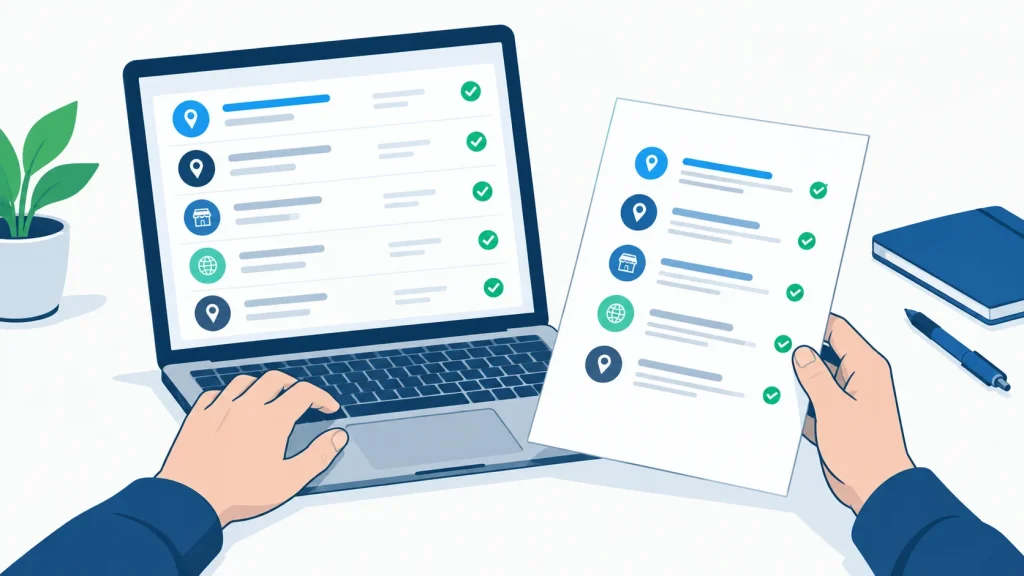
Update everything that shows your name elsewhere, then submit the edit.
- Update the website first. Change the business name across the homepage, footer, About page, and contact details. If you can, make the primary owner email an address on the new domain.
- Update the URL in the profile. If the domain has also changed, edit the website URL field in the profile before touching the name.
- Update major directory citations. Change the name on Yelp, Apple Maps, Bing Places, Facebook, Foursquare, and any industry directories you appear on. This is the part that most often gets skipped.
- Resubmit the name edit in the profile through any of the three methods above.
- If still rejected, use the Suggest an edit path as a secondary route, or contact Google Business Profile support directly through the Help menu inside the profile.
Directories where the business was never listed are a different job. Nothing needs correcting there, so a listing under the new name is citation building after a rebrand, ordered separately from the corrections.
If you need someone to do the correction work for you, that is one-time work you order at the point of the change.
Takeaway: Website first, directories second, profile edit last.
Worked Example: Renaming a Business After an Acquisition
This is a composite example, not a real client, and the figures in it are invented for the illustration. Only the method is real.
Marlin & Roe Bookkeeping bought a small accounting practice trading as Fenwick Accounts. Same address, same phone number, same staff. The new owner wanted the Google Maps listing to read Marlin & Roe.
The first attempt was straightforward: sign in, open the profile, change the name, save. The edit came back rejected. At that point, the website at fenwickaccounts.com still displayed the old name on every page, and a check of directory listings turned up 42 live citations under Fenwick Accounts across Yelp, Bing Places, Facebook, Foursquare, the local Chamber directory, and a batch of industry-specific sites.
The team spent about a working week on the correction stage. The website was rebranded first, then the primary owner email was moved to a marlinandroe.com address. The profile’s website URL was updated to point at the new domain, then left alone for a day. In parallel, the directory listings were worked through manually, each one updated with the new name and the new URL.
The second name-change submission on the Google profile passed review. The Maps listing updated to Marlin & Roe, reviews stayed intact, and the address and phone stayed the same throughout.
One honest detail: several weeks after the Maps update, one smaller directory still displayed Fenwick Accounts. A takedown request was submitted and the ticket stayed open past the point this example ends. Full consistency across the web is slower than the Maps edit itself.
Takeaway: The Maps change is the quick part. Fixing everything that feeds it is the actual project.
Keeping Your Listing Accurate After the Name Change
Once the Maps name has updated, a few checks are worth doing.
- Audit major directories again. Yelp, Apple Maps, Bing Places, Facebook, Foursquare, and any industry directories should all now show the new name. Anything still on the old name is a correction to make.
- Look for duplicate listings under the old name. A third party, an aggregator, or an automated data feed can re-add a listing carrying the old business name. That is a duplicate: the same business appearing twice, with different review counts on each. Requesting removal of duplicates is a separate task from the name edit.
- Check the details match. The name, address, and phone number should read the same across every listing. Small formatting variations happen; the point is that a customer reading two listings side by side would call them the same business.
- Treat this as one-time work. Listings do drift over months as third parties refresh their data. When they drift again, that is a fresh job to order, not a subscription that runs in the background.
Google’s own guidance states that “businesses with complete and accurate info are more likely to show up in local search results”, and that inaccurate info means the profile “might not show up for relevant searches in your area”. That is the plain reason to keep the details tidy after a rename. The same order works for any other detail that changes: the guide to updating your business address everywhere it’s listed follows it for a move.
Takeaway: Audit the directories, remove duplicates carrying the old name, and treat future drift as a fresh job.
Which Fix Fits Your Situation
| Situation | What fits | Why |
|---|---|---|
| Rejected once, website and sign already show the new name | Check the name for added keywords or a city, then resubmit yourself | Nothing to buy. The edit is free |
| You do not own or manage the profile | Ownership transfer, or mark closed and add the new place | Nobody can edit it for you until access is sorted |
| Rebrand with a new domain | You, website and profile URL first | Both are yours to change |
| Bought a business with years of listings under the old name | Directory correction, done by you or ordered | Dozens of accounts, many held by the previous owner |
| New name has no listing on some directories | New listings under the new name | That is building, not correcting |
Frequently Asked Questions
How long does it take for a business name change to show on Google Maps?
Google does not publish a timeline for reviewing name edits. The profile shows Under review until the edit is decided, and that status is the thing to check.
Can I change my business name on Google Maps without losing my reviews?
Generally, yes, when it is the same business under a new name. Google does not state this outright, so note your review count before the edit and check it after.
Do I need to re-verify my Google Business Profile after changing the name?
Sometimes. If the new name is very different from the verified one, you may be prompted to verify again.
How do I change my business name on Google Maps if I don’t own the listing?
You cannot edit it directly. You can either request ownership transfer from the current owner, claim the listing if it is unclaimed, or use the public Suggest an edit option on the profile, which anyone signed into Google can submit. If the business has changed its name significantly, the option in Google Maps is to mark the old place as permanently closed and add the new business as a missing place.
Can someone else change my business name on Google Maps without my permission?
Any signed-in Google user can submit a Suggest an edit. Those suggestions go through the same review process. As the verified owner, you can edit the name back from your profile if an unwanted change goes live.
Sources
- Google Business Profile Help, Improve your local ranking on Google, support.google.com/business/answer/7091. Used for the single quoted statement about complete and accurate information. Checked September 25, 2026.
How This Guide Was Made
Local Citation Services sells one-time manual citation work, and this guide is written by people who correct directory listings for a living. The commercial interest is plain: if you would rather not do the directory updates yourself before a name change, that is the work we sell.
You can do all of the steps in this guide without paying anyone. The three edit methods, the correction sequence, and the directory audit are all self-serve. If your time is worth more than the work, hire someone. If not, the instructions above are the same ones a specialist would follow.
Google does not publish how name changes are reviewed, and this guide does not guess. What it describes is what an owner can see and check: the edit screens, the Under review status, and whether the name matches the sign, the website and the listings. The one quoted statement comes from Google Business Profile Help and is linked once in the article. No claim is made here about what listing data does to search results.
The worked example is Marlin & Roe Bookkeeping, and it is invented. The name, the 42 citations, the working week, and the stuck directory listing are all illustration. The sequence they follow is the same one a real acquisition rebrand would follow.

Founder, Local Citation Services and Local SEO Expert
Sharif has built local citations by hand since 2009, across 24,000+ orders and 50+ countries. He leads the team that submits every listing manually, checks what already exists before adding anything, and reports back with a live URL and a login for each one. He writes about what the work actually involves, what goes wrong, and what a business owner can check for themselves without buying a tool.